MySQL Database Connection Tester
Write a VB.NET application to test the connection of MySQL databases
Author: Nathan Gill
Date Published: 2021-03-09
This tutorial will teach you how to create a VB.NET application to test the connection of MySQL databases.
You need to install MySql.Data from NuGet or if you are using the PM:
PM> Install MySql.Data
You will need to create two forms called Form1 and Form2.
On Form1, you will need to create the following components:
| Type | Name |
|---|---|
Button | connect |
Button | disconnect |
Label | status |
TextBox | host |
TextBox | user |
TextBox | database |
Button | options |
TextBox | password |
When done, Form1 should look like this:
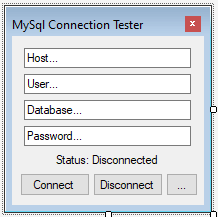
On Form2, you will need to create the following components:
| Type | Name |
|---|---|
Button | Button1 |
Button | Button2 |
CheckBox | resetOnFail |
CheckBox | readOnlyData |
CheckBox | resetOnDisconnect |
CheckBox | usePasswordChar |
TextBox | passwordChar |
Label | Label1 |
PictureBox | PictureBox1 |
When done, Form2 should look like this:
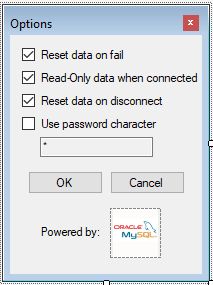
Add these imports:
Imports MySql.Data
Imports MySql.Data.MySqlClient
Add this code to Form1:
Dim connectionString As String
Dim mySqlConnection As MySqlConnection
Dim resetDataOnFail As Boolean
Dim readOnlyData As Boolean
Dim passwordChar As String
Dim usePasswordChar As Boolean
Dim resetOnDisconnect As Boolean
These are important variables to monitor certain aspects of out program. Also create the last 4 as settings in "Project/Properties/Settings" so they can be accessed between forms.
Then add:
Private Sub Form1_Load(sender As Object, e As EventArgs) Handles MyBase.Load
    connect.Enabled = True
    status.Text = "Status: Disconnected"
    UpdateOptions()
End Sub
This enables the connect button and changes the status. The UpdateOptions
function is created later.
Add:
Private Sub connect_Click(sender As Object, e As EventArgs) Handles connect.Click
    Try
        connectionString = "server=" & host.Text & ";user=" & user.Text & ";_
        database=" & database.Text & ";password=" & password.Text & ";"
        mySqlConnection = New MySqlConnection(connectionString)
        mySqlConnection.Open()
        status.Text = "Status: Connected"
        connect.Enabled = False
        disconnect.Enabled = True
        If readOnlyData = True Then
            FreezeData()
        End If
    Catch ex As Exception
        status.Text = "Status: Failed"
        connectionString = ""
        mySqlConnection = Nothing
        MsgBox("One or more properties are invalid", MsgBoxStyle.Critical,
               "MySql Connection Tester")
        status.Text = "Status: Disconnected"
        connect.Enabled = True
        disconnect.Enabled = False
        If resetDataOnFail = True Then
            ResetData()
        End If
        Exit Sub
    End Try
End Sub
This handles the click event of out connect button. The first three lines are
to open the connection to the server. The next three lines prepare for out
disconnection. FreezeData is created later. Underneath, we handle any
exceptions that occur. This is most likely when the database cannot be found.
Add:
Private Sub disconnect_Click(sender As Object, e As EventArgs) Handles disconnect.Click
        Try
            mySqlConnection.Close()
            status.Text = "Status: Disconnected"
            connect.Enabled = True
            disconnect.Enabled = False
            connectionString = ""
            mySqlConnection = Nothing
            If resetOnDisconnect = True Then
                MeltAndClearData()
            Else
                MeltData()
            End If
        Catch ex As Exception
            status.Text = "Status: Failed"
            connectionString = ""
            mySqlConnection = Nothing
            MsgBox("One or more properties are invalid", MsgBoxStyle.Critical)
            status.Text = "Status: Connected"
            connect.Enabled = False
            disconnect.Enabled = True
            Exit Sub
        End Try
End Sub
Here, we handle the disconnection event, where we disconnect from the database
and prepare for re-connection. MeltAndClearData and MeltData are created
later. Underneath, we specify what should happen if we fail to disconnect from
the database.
Add:
Public Sub ResetData()
    host.Text = "Host..."
    database.Text = "Database..."
    user.Text = "User..."
    password.Text = "Password..."
End Sub

Public Sub FreezeData()
    host.ReadOnly = True
    database.ReadOnly = True
    user.ReadOnly = True
    password.ReadOnly = True
End Sub

Public Sub MeltData()
    host.ReadOnly = False
    database.ReadOnly = False
    user.ReadOnly = False
    password.ReadOnly = False
End Sub

Public Sub MeltAndClearData()
    MeltData()
    ResetData()
End Sub
ResetData resets the text in the textboxes. FreezeData makes the textboxes
read-only so they cannot be modified while we are connected to the database.
MeltData makes the textboxes editable when we are disconnected.
MeltAndClearData makes the textboxes editable and it resets them to their
defaults.
Add:
Public Sub Button1_Click(sender As Object, e As EventArgs) Handles options.Click
    Form2.ShowDialog()
    If Form2.DialogResult = DialogResult.OK Then
        UpdateOptions()
    End If
End Sub

Public Sub UpdateOptions()
    resetDataOnFail = My.Settings.resetDataOnFail
    readOnlyData = My.Settings.readOnlyDataOnConnected
    usePasswordChar = My.Settings.usePasswordChar
    passwordChar = My.Settings.passwordChar
    resetOnDisconnect = My.Settings.resetOnDisconnected
    If usePasswordChar = True Then
        password.PasswordChar = passwordChar
    Else
        password.PasswordChar = ""
    End If
End Sub
Here, we choose what to do when Button1 is pressed. We also create
UpdateOptions which reads the data that Form2 creates and stores
them in variables. These are all settings for out application.
Add this code to Form2:
Private Sub passwordChar_CheckedChanged(sender As Object, e As EventArgs) _
        Handles usePasswordChar.CheckedChanged
    If usePasswordChar.Checked = True Then
        passwordChar.ReadOnly = False
    Else
        passwordChar.ReadOnly = True
    End If
End Sub

Private Sub Button1_Click(sender As Object, e As EventArgs) Handles Button1.Click
    My.Settings.resetDataOnFail = resetOnFail.CheckState
    My.Settings.readOnlyDataOnConnected = readOnlyData.CheckState
    My.Settings.resetOnDisconnected = resetOnDisconnect.CheckState
    My.Settings.usePasswordChar = usePasswordChar.CheckState
    My.Settings.passwordChar = passwordChar.Text
    My.Settings.Save()
    Me.DialogResult = DialogResult.OK
    Me.Close()
End Sub

Private Sub Button2_Click(sender As Object, e As EventArgs) Handles Button2.Click
    Me.DialogResult = DialogResult.Cancel
    Me.Close()
End Sub
Here, we handle what happens when we change whether we want to use a password character. We change the application settings when we close it and do not change them when we cancel.
The full code of Form1 is here:
Imports MySql.Data
Imports MySql.Data.MySqlClient
Public Class Form1

    Dim connectionString As String
    Dim mySqlConnection As MySqlConnection
    Dim resetDataOnFail As Boolean
    Dim readOnlyData As Boolean
    Dim passwordChar As String
    Dim usePasswordChar As Boolean
    Dim resetOnDisconnect As Boolean

    Private Sub Form1_Load(sender As Object, e As EventArgs) Handles MyBase.Load
        connect.Enabled = True
        status.Text = "Status: Disconnected"
        UpdateOptions()
    End Sub

    Private Sub connect_Click(sender As Object, e As EventArgs) Handles connect.Click
        Try
            connectionString = "server=" & host.Text & ";_user=" & user.Text & ";_
                      database=" & database.Text & ";password=" & password.Text & ";"
            mySqlConnection = New MySqlConnection(connectionString)
            mySqlConnection.Open()
            status.Text = "Status: Connected"
            connect.Enabled = False
            disconnect.Enabled = True
            If readOnlyData = True Then
                FreezeData()
            End If
        Catch ex As Exception
            status.Text = "Status: Failed"
            connectionString = ""
            mySqlConnection = Nothing
            MsgBox("One or more properties are invalid", _
                    MsgBoxStyle.Critical, "MySql Connection Tester")
            status.Text = "Status: Disconnected"
            connect.Enabled = True
            disconnect.Enabled = False
            If resetDataOnFail = True Then
                ResetData()
            End If
            Exit Sub
        End Try
    End Sub

    Private Sub disconnect_Click(sender As Object, e As EventArgs) Handles disconnect.Click
        Try
            mySqlConnection.Close()
            status.Text = "Status: Disconnected"
            connect.Enabled = True
            disconnect.Enabled = False
            connectionString = ""
            mySqlConnection = Nothing
            If resetOnDisconnect = True Then
                MeltAndClearData()
            Else
                MeltData()
            End If
        Catch ex As Exception
            status.Text = "Status: Failed"
            connectionString = ""
            mySqlConnection = Nothing
            MsgBox("One or more properties are invalid", MsgBoxStyle.Critical)
            status.Text = "Status: Connected"
            connect.Enabled = False
            disconnect.Enabled = True
            Exit Sub
        End Try
    End Sub

    Public Sub ResetData()
        host.Text = "Host..."
        database.Text = "Database..."
        user.Text = "User..."
        password.Text = "Password..."
    End Sub

    Public Sub FreezeData()
        host.ReadOnly = True
        database.ReadOnly = True
        user.ReadOnly = True
        password.ReadOnly = True
    End Sub

    Public Sub MeltData()
        host.ReadOnly = False
        database.ReadOnly = False
        user.ReadOnly = False
        password.ReadOnly = False
    End Sub

    Public Sub MeltAndClearData()
        MeltData()
        ResetData()
    End Sub

    Public Sub Button1_Click(sender As Object, e As EventArgs) Handles options.Click
        Form2.ShowDialog()
        If Form2.DialogResult = DialogResult.OK Then
            UpdateOptions()
        End If
    End Sub

    Public Sub UpdateOptions()
        resetDataOnFail = My.Settings.resetDataOnFail
        readOnlyData = My.Settings.readOnlyDataOnConnected
        usePasswordChar = My.Settings.usePasswordChar
        passwordChar = My.Settings.passwordChar
        resetOnDisconnect = My.Settings.resetOnDisconnected
        If usePasswordChar = True Then
            password.PasswordChar = passwordChar
        Else
            password.PasswordChar = ""
        End If
    End Sub

End Class
The full code of Form2 is here:
Public Class Form2

    Private Sub passwordChar_CheckedChanged(sender As Object, e As EventArgs) _
            Handles usePasswordChar.CheckedChanged
        If usePasswordChar.Checked = True Then
            passwordChar.ReadOnly = False
        Else
            passwordChar.ReadOnly = True
        End If
    End Sub

    Private Sub Button1_Click(sender As Object, e As EventArgs) Handles Button1.Click
        My.Settings.resetDataOnFail = resetOnFail.CheckState
        My.Settings.readOnlyDataOnConnected = readOnlyData.CheckState
        My.Settings.resetOnDisconnected = resetOnDisconnect.CheckState
        My.Settings.usePasswordChar = usePasswordChar.CheckState
        My.Settings.passwordChar = passwordChar.Text
        My.Settings.Save()
        Me.DialogResult = DialogResult.OK
        Me.Close()
    End Sub

    Private Sub Button2_Click(sender As Object, e As EventArgs) Handles Button2.Click
        Me.DialogResult = DialogResult.Cancel
        Me.Close()
    End Sub
End Class
That is it! I hope you enjoyed making this application and find it useful!
History
- 9th March, 2021: Initial version
- 19 March, 2026: Move to personal site
License
Originally published on CodeProject, which is sadly no longer around :(
This article, along with any associated source code and files, is licensed under The Code Project Open License (CPOL) [archived]